Commission tracking in Attio, end to end
Attio is a powerful CRM, but it does not calculate commissions. CompCode is the only commission platform with a native Attio integration. Here is exactly how to connect them for real-time commission tracking.
If your sales team runs on Attio, you have likely noticed there is no built-in way to calculate or track commissions. You can add custom number fields to deal records and update them manually, but that breaks the moment your plan has tiers, accelerators, or multiple measures. You need a commission engine that understands your plan logic and updates automatically when deals close.
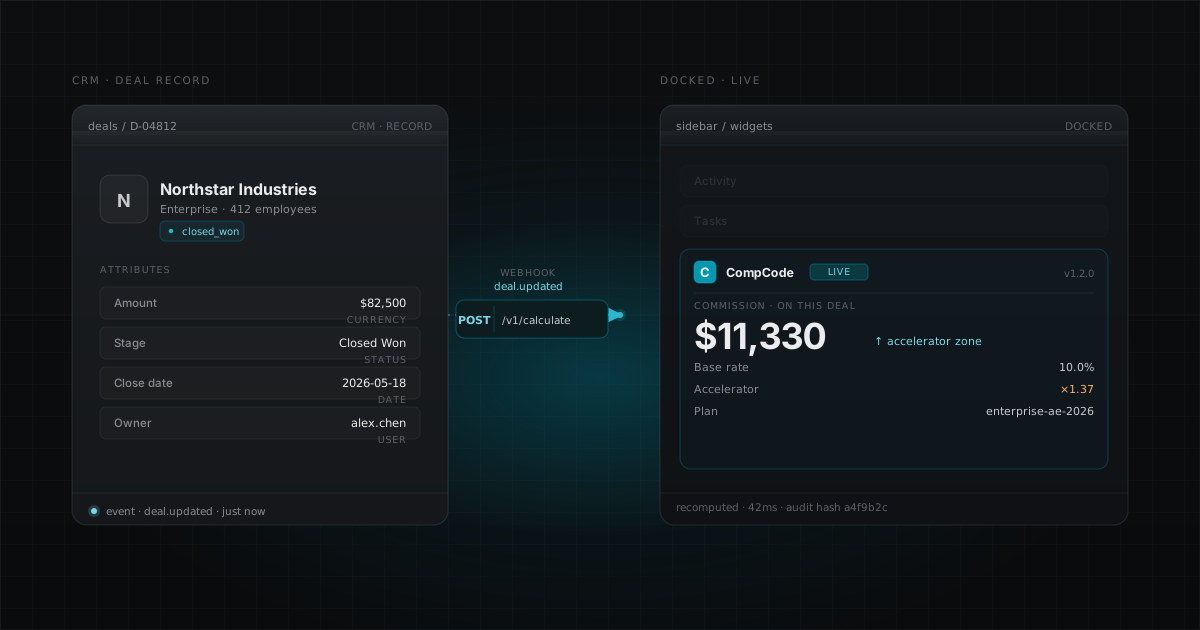
CompCode connects to Attio via OAuth, listens for deal changes via webhooks, calculates commissions based on your plan rules, and surfaces results inside Attio through an embedded deal widget plus the CompCode dashboard. The entire setup takes about 10 minutes.
Step 1: Install CompCode from the Attio Marketplace
The fastest path is through the Attio Marketplace. Search for "CompCode" and click Install. This initiates an OAuth flow that connects your Attio workspace and provisions a CompCode workspace linked to it. The install also sets up the webhook subscription so CompCode receives deal updates in real time, syncs team members from Attio into CompCode as reps, and runs an initial deal sync to pull in your existing closed deals.
- Creates your CompCode workspace linked to your Attio workspace
- Sets up a webhook subscription so CompCode receives deal updates in real time
- Syncs your team members from Attio into CompCode as reps
- Runs an initial deal sync to pull in your existing closed deals
Alternatively, you can start from app.compcode.ai and click "Connect Attio" on the Integrations page. The result is the same: OAuth consent, workspace provisioning, webhook setup.
After installation, CompCode installs an Attio deal widget on your deal records. The widget reads commission data from CompCode and renders it in the deal sidebar so reps and managers can see earnings without leaving Attio. (Writing commission values back to custom deal fields is on the roadmap; today the widget reads from CompCode rather than mutating Attio's deal record.)
Step 2: Map your deal fields
CompCode needs to know which Attio fields correspond to the data it needs for commission calculations. The critical mappings cover the four pieces of data every commission rule needs to evaluate: how much the deal is worth, what stage it is in, when it closed, and who owns it. Once these are wired up, every plan you create against this workspace can reference them.
- Deal amount. The ACV or total contract value field (used as the commission base)
- Deal stage. The pipeline stage field (CompCode triggers on "Won" deals by default)
- Close date. Determines which commission period the deal falls into
- Deal owner. Maps to the rep who earns the commission
If your plan uses conditions, for example different rates for "New Business" vs. "Expansion" deals, you will also map the deal type field. Margin-based plans need a margin percentage field. CompCode's field mapping UI auto-detects your Attio deal attributes and lets you select the right ones from dropdowns. The mapping is stored per workspace, so you only configure it once.
Step 3: Create your commission plan via API
With your CRM connected and fields mapped, create a commission plan. You can do this through CompCode's plan builder UI or directly via the REST API. Here is a simple tiered plan sent via POST /v1/plans:
curl -X POST https://api.compcode.ai/v1/plans \
  -H "Authorization: Bearer YOUR_API_KEY" \
  -H "Content-Type: application/json" \
  -d '{
    "name": "Q2 AE Commission Plan",
    "version": 1,
    "effectiveStart": "2026-04-01",
    "rules": [
      {
        "name": "ACV Rate",
        "measure": "closed_won_revenue",
        "attainmentPeriod": "quarterly",
        "tierBy": "attainment",
        "tierMode": "full_rate",
        "tiers": [
          { "tierIndex": 0, "minThreshold": 0,   "rate": 0.10 },
          { "tierIndex": 1, "minThreshold": 1.0, "rate": 0.15 }
        ]
      }
    ]
  }'
The API validates the config with Zod schema validation and returns the created plan with its ID and version. For more plan examples (including multi-measure, bonus, and margin-based configs) see 5 Commission Plan Examples for SaaS Sales Teams.
Step 4: Assign reps to the plan
Plans do not calculate anything until reps are assigned, because the engine needs to know which rep's quota and attainment to track against each closed deal. Use the Assignments API or the dashboard's plan builder to link the right reps to the plan with an effective start date. The effective date matters: deals closed before it are not retroactively recalculated under this plan unless you explicitly trigger a recalculate.
curl -X POST https://api.compcode.ai/v1/assignments \
  -H "Authorization: Bearer YOUR_API_KEY" \
  -H "Content-Type: application/json" \
  -d '{
    "planId": "plan_abc123",
    "repIds": ["rep_001", "rep_002", "rep_003"],
    "effectiveStart": "2026-04-01"
  }'
You can also set quotas at this point via POST /v1/quotas. Quotas are required for any plan that tiers by attainment. Without a quota, the engine cannot calculate the percentage of target achieved.
Step 5: How real-time webhooks work
This is where the integration becomes automatic. Every time a deal changes in Attio, a sequence of steps runs in CompCode that takes the deal from "stage updated" to "commission visible in the widget" in under 3 seconds. The pipeline below describes what happens between those two moments, all driven by HMAC-verified webhooks.
- Deal updates in Attio. A rep moves a deal to "Won", changes the amount, or updates any mapped field
- Attio fires a webhook. CompCode receives the event within seconds, verified by HMAC signature
- CompCode snapshots the deal. The current deal state is saved to
deal_snapshotsfor audit purposes - Stage check. Only deals in the "Won" stage (or your configured trigger stage) proceed to calculation
- Plan matching. The engine finds which plan(s) the deal owner is assigned to via
plan_assignments - Rules evaluation. Each rule in the plan is evaluated: conditions are checked, tiers are matched, payouts are calculated
- Commission event created. An immutable record is written to the
commission_eventsledger with an idempotency key (no duplicate payouts) - Surfaced in the Attio widget. Next time the deal record is opened in Attio, the embedded CompCode widget reads the commission event and renders amount, rate, and plan name in the sidebar
The entire pipeline, from deal stage change to commission visible in the widget, typically completes in under 3 seconds.
Step 6: Reading commission data in Attio
Once commissions are calculating, your team can see the data in two places: inside Attio via the embedded widget on each deal record, and in the CompCode dashboard for everything else. The two surfaces are kept in sync via the same webhook pipeline. Pick whichever view fits the user's daily workflow.
In Attio deal records: The CompCode widget, installed via the Marketplace app, renders in the deal sidebar. It shows the commission amount, effective rate, plan name, and a link to the full calculation trace in CompCode. Reps see this when they open any deal. Managers can click through to the dashboard for team-level views.
In the CompCode dashboard: The rep dashboard shows total earnings, quota attainment, deal-by-deal breakdowns, and pipeline forecasts. Managers get a team view with all reps' attainment side by side. Statements can be generated, approved, and exported for payroll.
Writing commission values directly to Attio's custom deal fields (so you can filter and sort by commission in Attio's native list views) is on the roadmap, but not enabled today. The widget is the primary surface for in-Attio commission visibility.
What happens when plans change?
Commission plans change every quarter, sometimes every month. When you update a plan via PATCH /v1/plans/:id, CompCode creates a new version. The old version is preserved in full. If a deal was calculated under the old plan version, that commission event remains in the ledger. New deals are calculated under the new version. You can recalculate historical deals using POST /v1/commissions/recalculate if needed, and the engine writes reconciliation events.
This versioning system means you never lose history. Every plan change, every calculation, every adjustment is traceable. Read more about the benefits of API-first commission management for your RevOps workflow.
For plan configuration examples ready to deploy, see 5 Commission Plan Examples for SaaS Sales Teams. For the full API reference, visit the documentation. Questions? Reach out at support@compcode.ai or check our pricing page.